Navigation and Content Panes
The Navigation Pane allows you to view, organize, and manage the parts of your story outline in a hierarchical structure. It’s similar to the Windows File Explorer, but instead of files and folders, each node in the tree is a Story Elements Your outline is composed of five Story Element types:
•	Story Overview
•	Problem
•	Character
•	Setting
•	Scene
There are also two Story Element types to assist in organizing your outline:
•	Folder
•	Section
Two more assist in researching your story:
•	Web
•	Notes
A StoryWorld element holds the rules, history, and cultures of your story’s world.
Below the outline, under a gray line, is a Deleted Story Elements node, which holds the story elements you delete.
Clicking (or touching) a Story Element node on the Navigation Pane will display that Story Element’s content in the Content Pane. Each Story Element type has its own form; the major ones are tabbed. 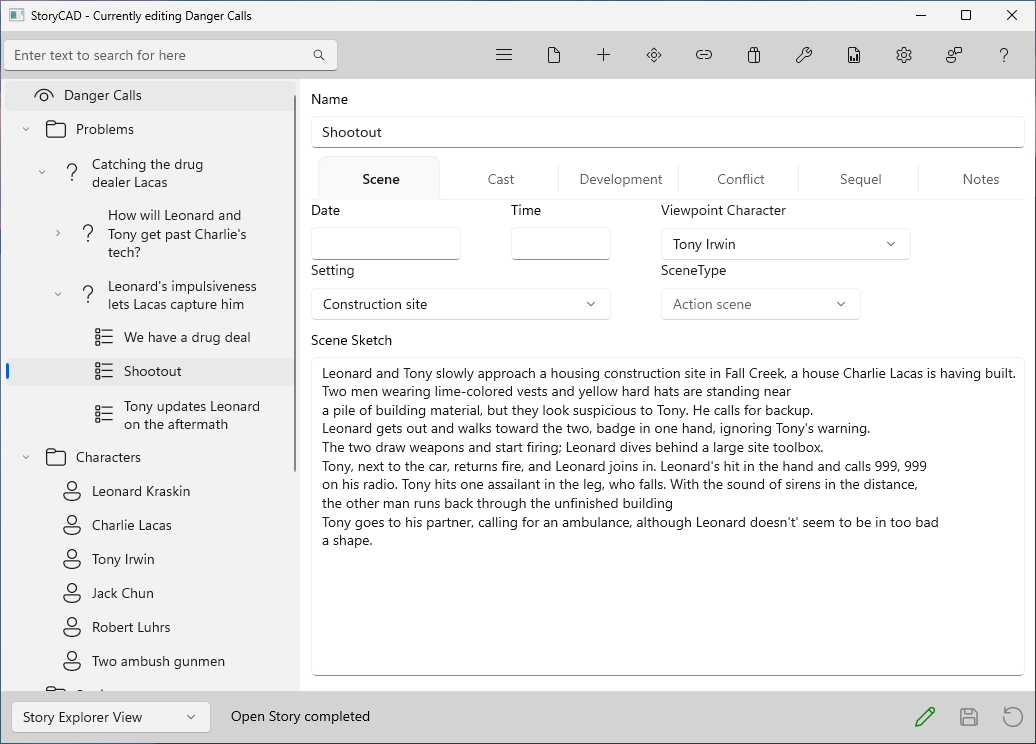
When the StoryCAD window is narrower than 800 pixels, there is room for only one pane, and the Content Pane fills the window:
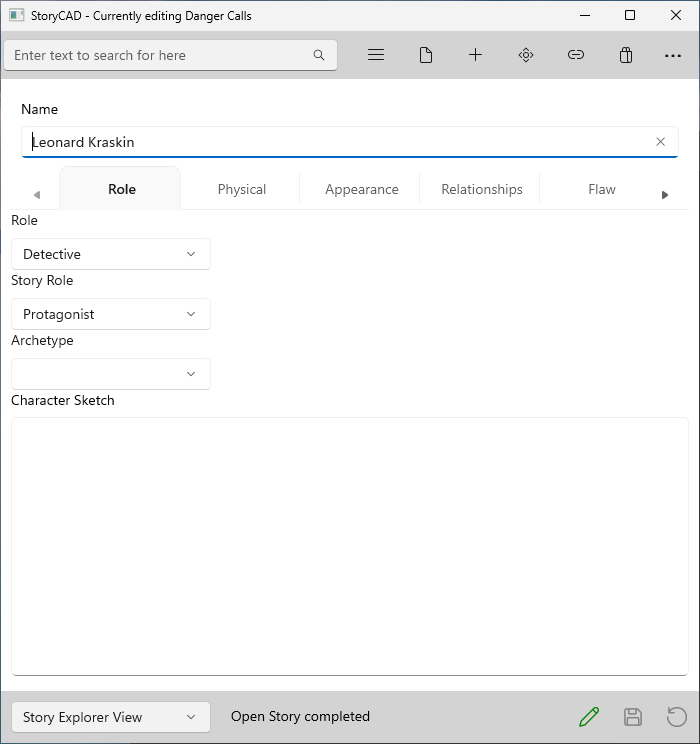
The Show/Hide Navigation button (the hamburger menu button) then switches between the Content Pane and the Navigation Pane, which also fills the window. Clicking a node opens it in the Content Pane; click the button again to see it.
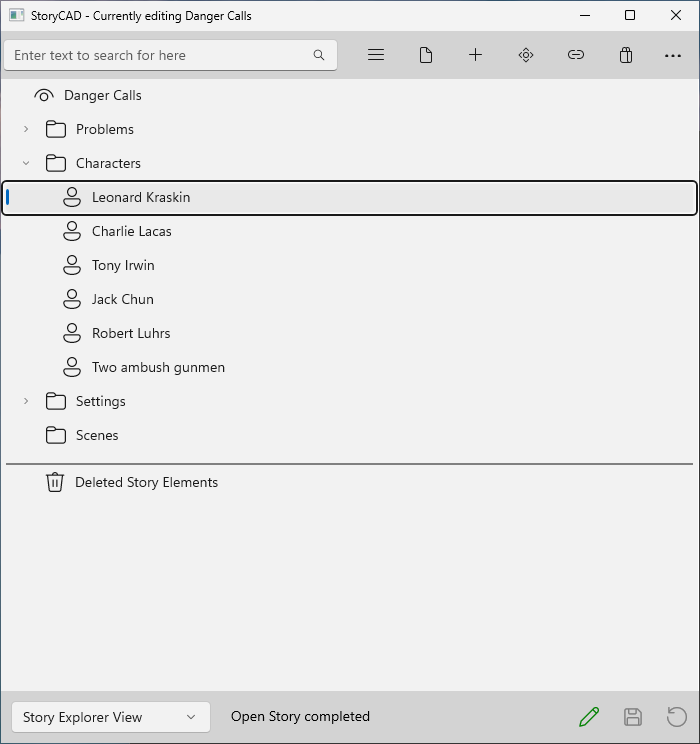
Your outline has only one Story Overview; it’s created automatically when you open or create a new outline. The Story Overview is the root of the Navigation Pane tree, and all other Story Elements are below it.
Most forms also have a full-page tab (labeled Notes) which holds your general notes and thoughts regarding the story element. We won’t talk about these again; just be aware that they’re there.