Menu Bar
The Menu bar is located just below the title bar on the StoryCAD form and provides access to StoryCAD’s common tasks.

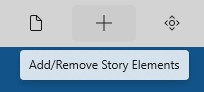
Hovering your mouse or stylus over a button will display a tool tip describing the button’s function:
The menu bar buttons either display drop-down menus (such as File), or launch particular actions (such as Preferences.)
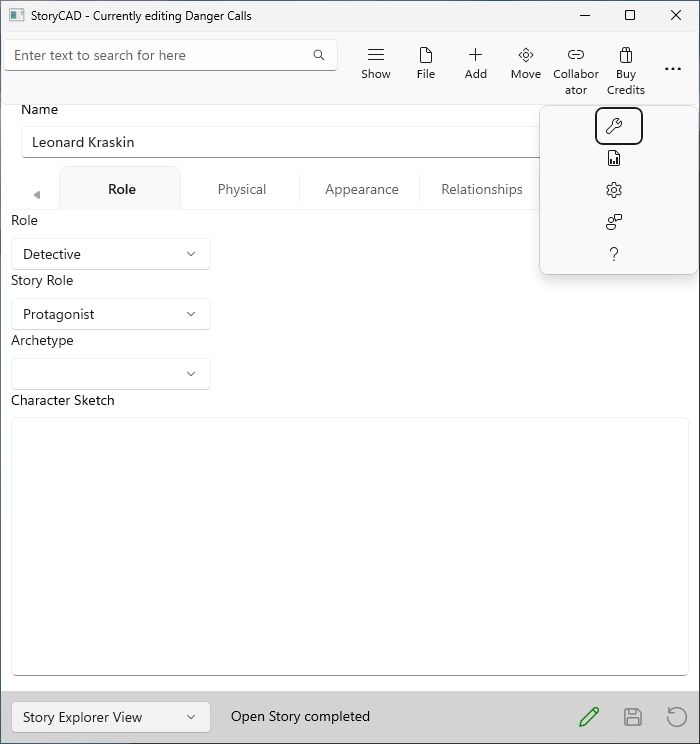
When the window is narrower than 800 pixels, the buttons that do not fit move to the … (More) button at the right end of the menu bar. Clicking … shows them, and it also shows each button’s name under the buttons on the bar:
macOS
On macOS, StoryCAD also provides a native menu bar at the top of the screen. It contains the same commands as the in-window toolbar.
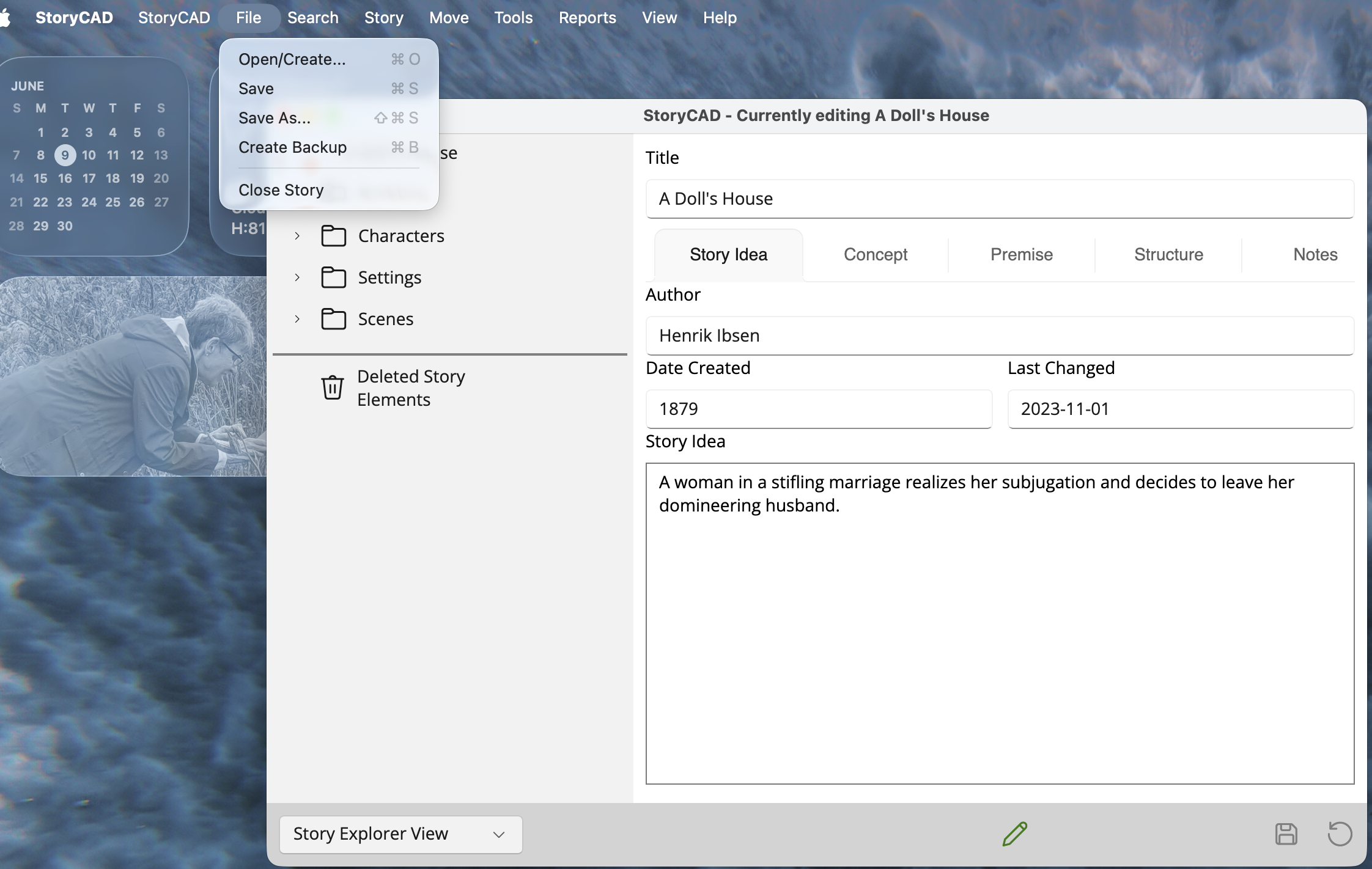
To hide the in-window toolbar and use only the native menu bar, open Preferences and turn off Hide in-window toolbar on the Other tab. The change takes effect on the next launch.